Firefly Open Source Community
Title: AIBOX-K3 AI Computer Zenow Application Usage [Print This Page]
Author: 799959745 Time: before yesterday 10:55
Title: AIBOX-K3 AI Computer Zenow Application Usage
Last edited by 799959745 In 6/3/2026 11:26 Editor
Zenow
Zenow is a locally-run AI knowledge assistant desktop application. All data processing occurs on-device, ensuring complete privacy — no data ever leaves the machine. It supports multi-model management, intelligent conversations, knowledge base Q&A, and voice interaction.
Key Features- Privacy-first: All data is processed locally and never uploaded to the cloud.
- Multi-model support: Run LLM, Embedding, and Reranking models simultaneously.
- Knowledge base Q&A: Perform intelligent Q&A over your local documents.
- Multi-turn conversations: Maintain contextual memory across continuous dialogue sessions.
Platform Support| Platform & OS | Acceleration Supported |
| K1 Buildroot | ❌ No |
| K1 OpenHarmony | ❌ No |
| K1 Bianbu LXQT/GNOME | ❌ No |
| K3 Buildroot | ❌ No |
| K3 OpenHarmony | ❌ No |
| K3 Bianbu LXQT/GNOME | ✅ Yes |
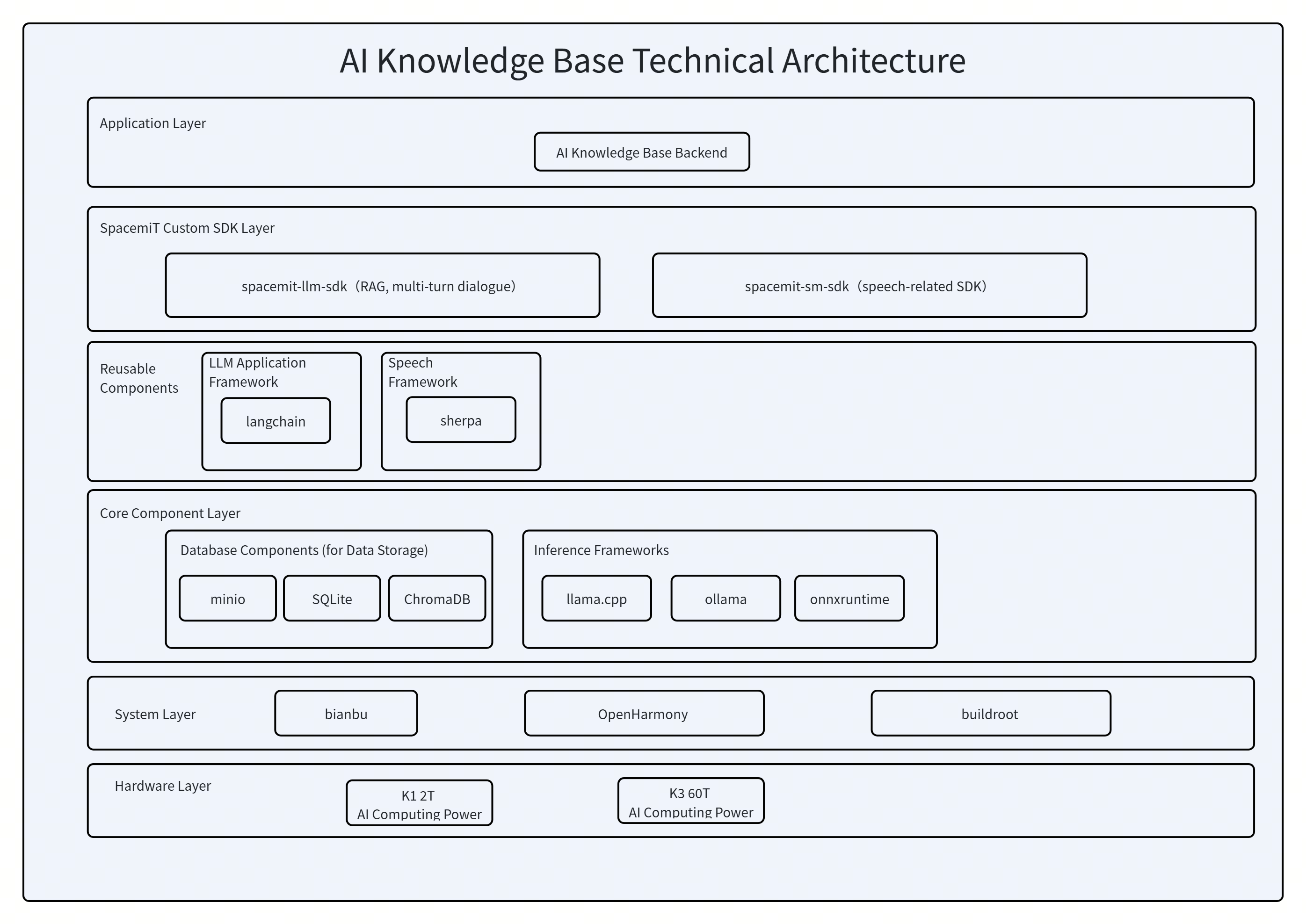
ArchitectureCore Technology StackZenow is built on the following technologies:
LLM SDK — Large language model inference engine
- Multi-turn dialogue
- Knowledge base Q&A
Frontend
- Electron — Cross-platform desktop application framework
- React + TypeScript — User interface
- Vite — Build tooling
Backend
- FastAPI — High-performance API service
- Python — Runtime environment
- SQLite — Local data storage
System Architecture DiagramData Flow- Chat flow: User input → Frontend → Backend session manager → LLM Server → Streaming response
- Knowledge base Q&A: User query → Embed initial retrieval → Weighted fusion (Embed + BM25 + Rerank) → LLM generates answer
InstallationRun the following commands in a terminal to install Zenow:
- sudo apt update
- sudo apt install zenow
Quick Start
1. Launch the Application
Open the application menu from the bottom-left corner, search for zenow, and click to launch.
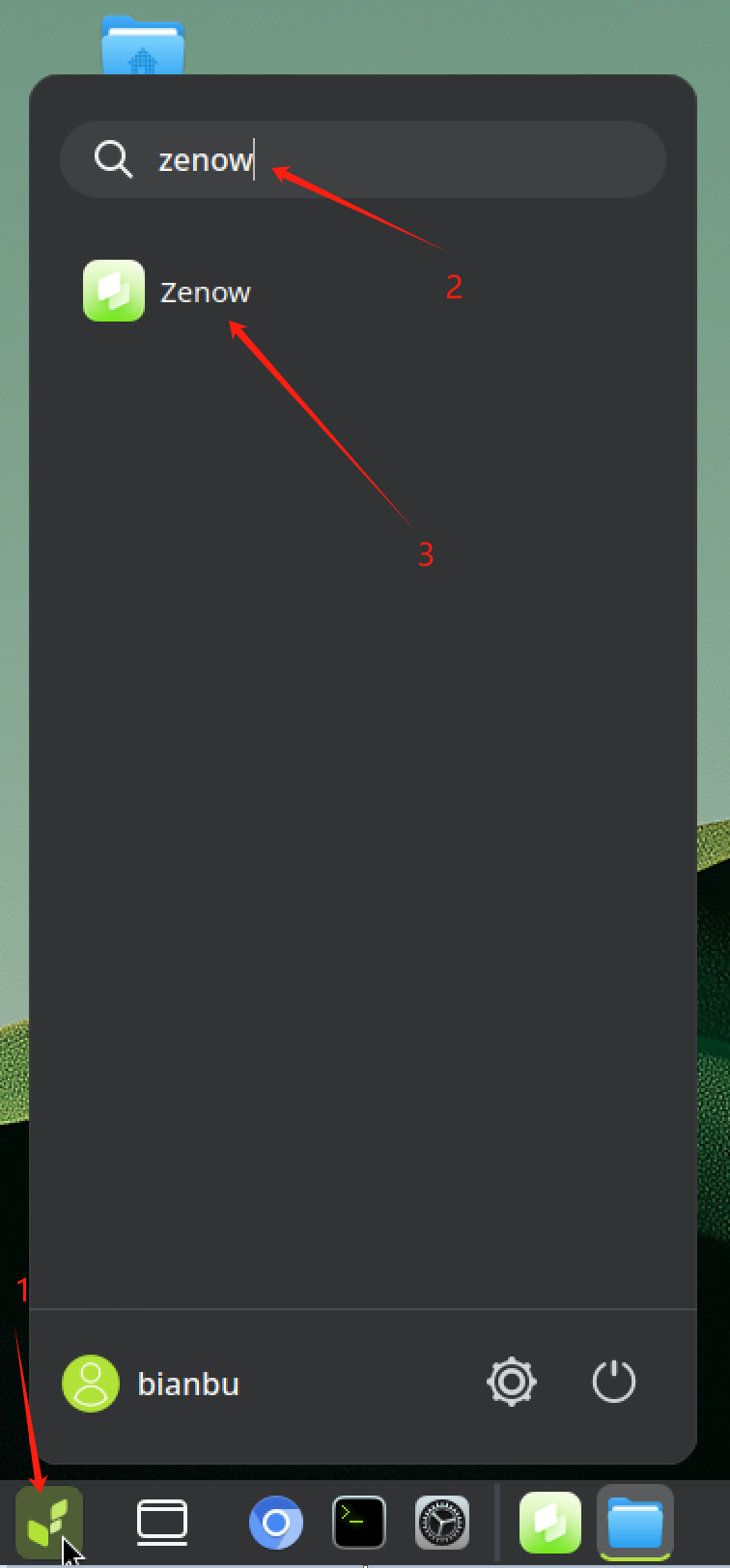
Tip: Right-click the application icon and select Add to Desktop, then mark it as trusted for quick access in future sessions.
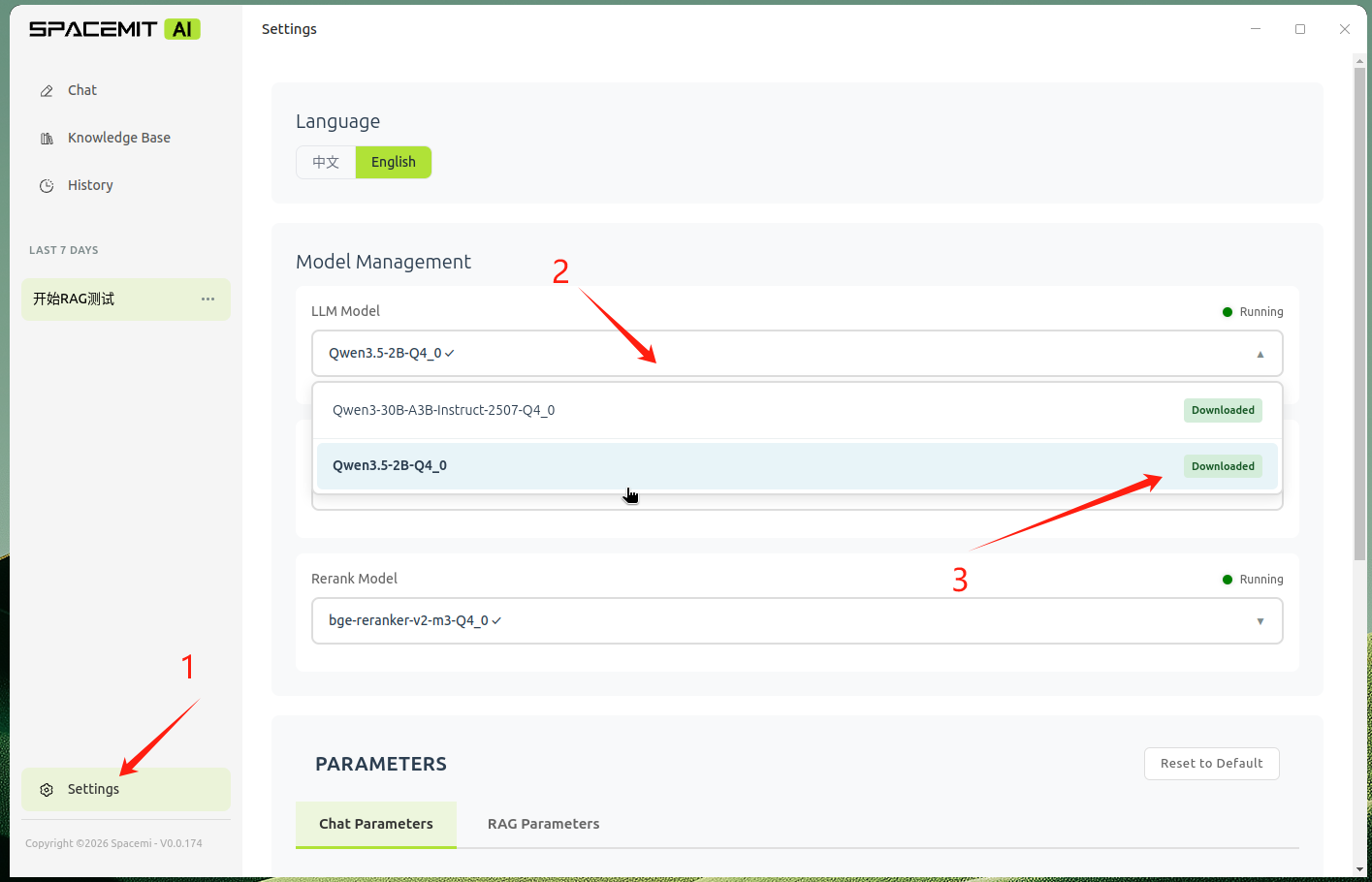
2. Download ModelsOn first launch, AI models must be downloaded before use:
- Click the Settings icon in the left sidebar.
- Locate the desired model in the model list.
- Click the model name to begin downloading.
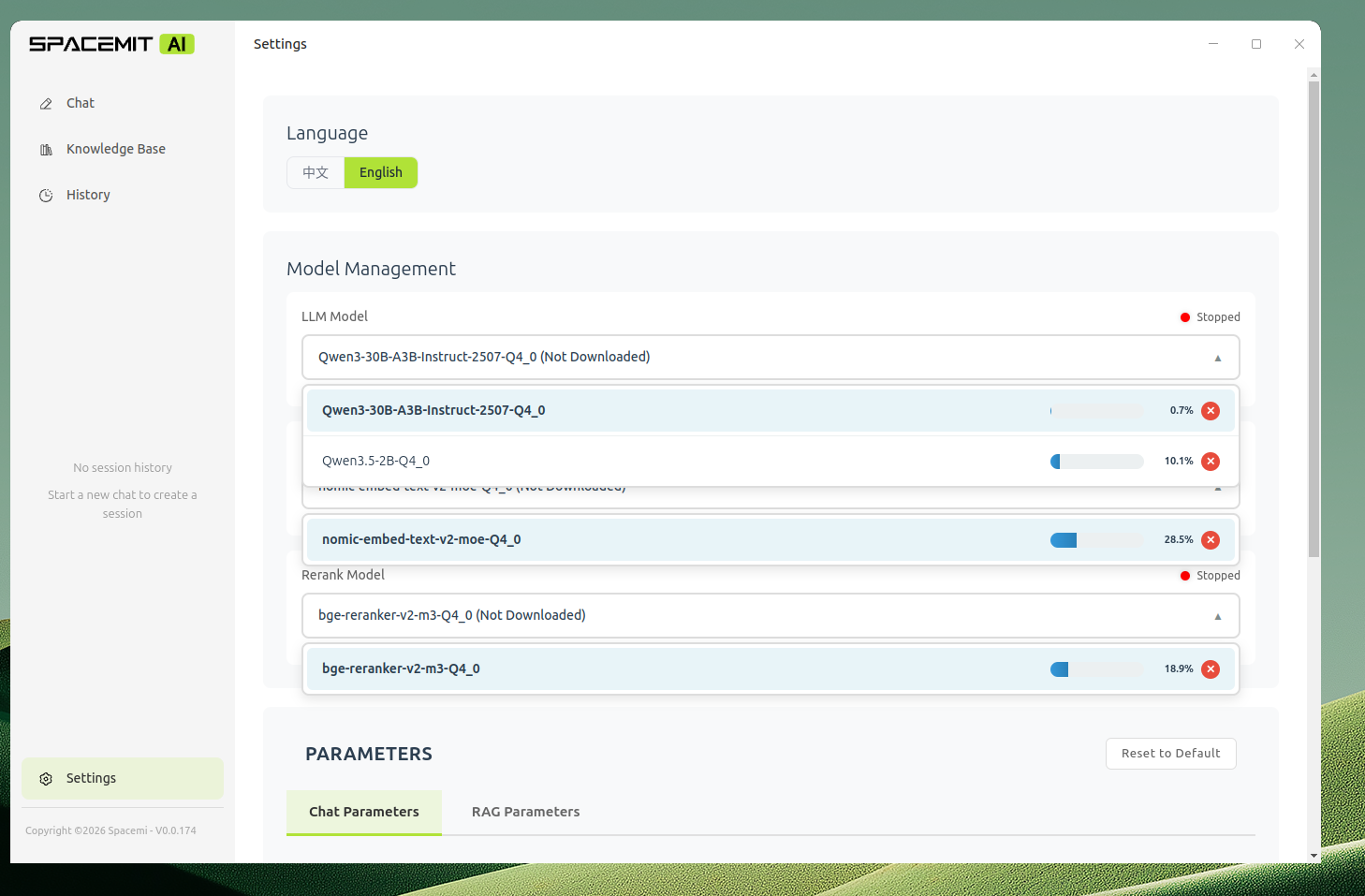
You can download multiple models simultaneously:
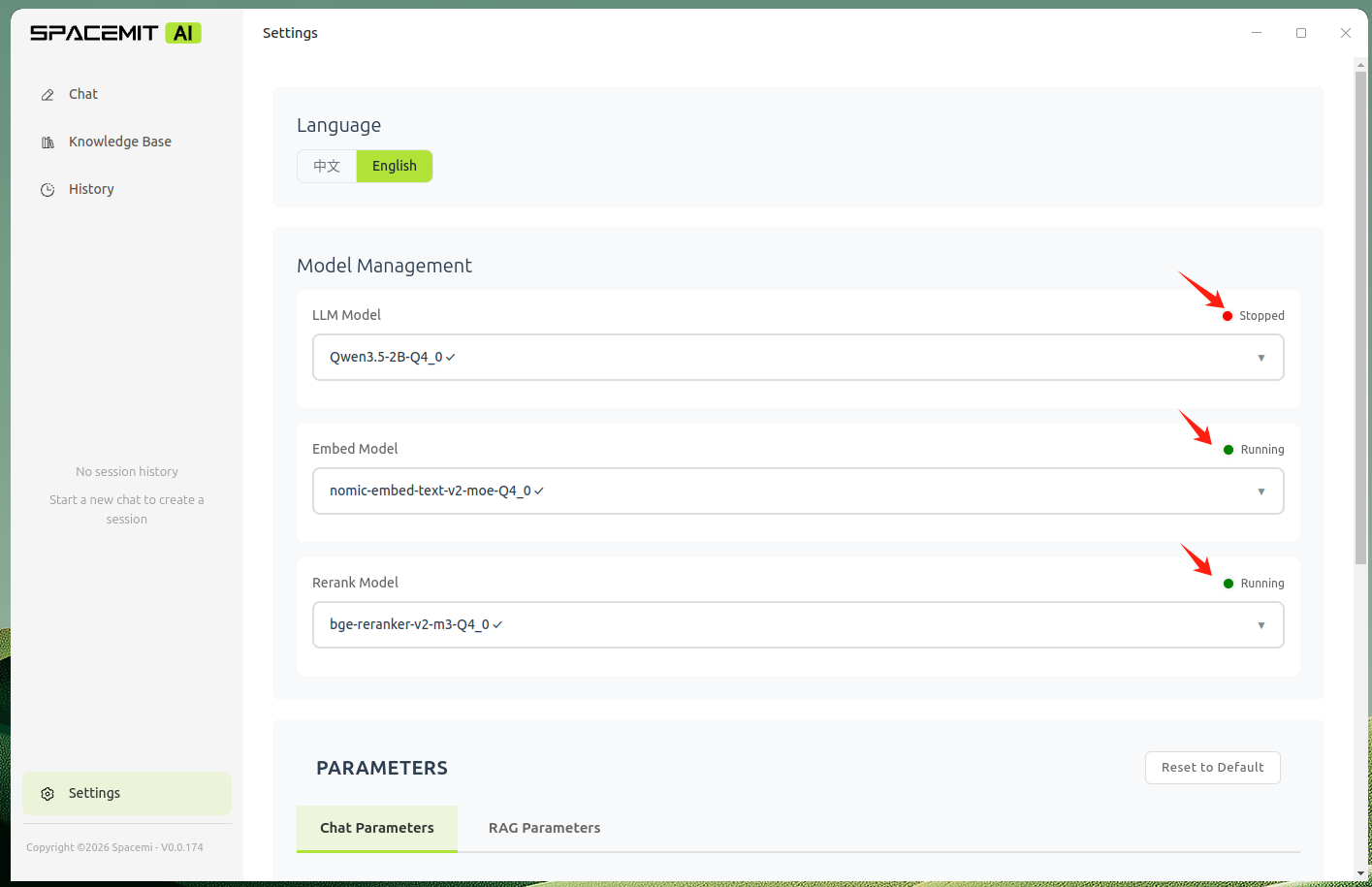
3. Start a ModelOnce a model has downloaded, click its name again to start it. Model status is indicated by a colored indicator:
| Indicator | Status |
| Red | Stopped |
| Yellow | Starting |
| Green | Running |
⚠️ Important: To use the full knowledge base feature, download and start at least one model of each type:
- LLM model — Generates conversational responses
- Embed model — Encodes text into vector representations
- Rerank model — Re-scores and ranks retrieval results
Features
Intelligent Chat
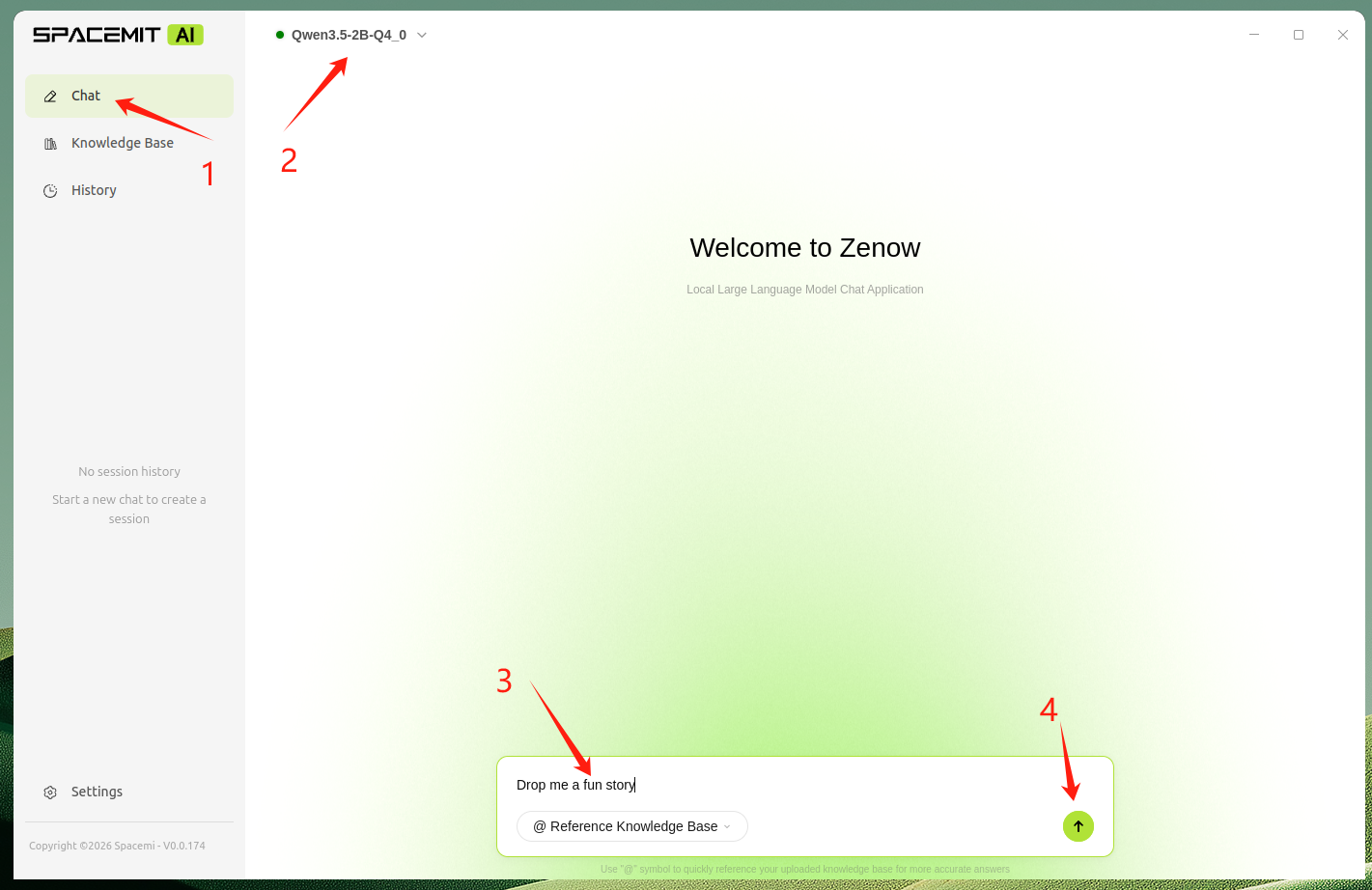
Start a New Conversation- Click Chat in the left sidebar.
- Confirm the LLM model status shows green.
- Enter a question in the input dialog box
- Press Enter, or click the send button.
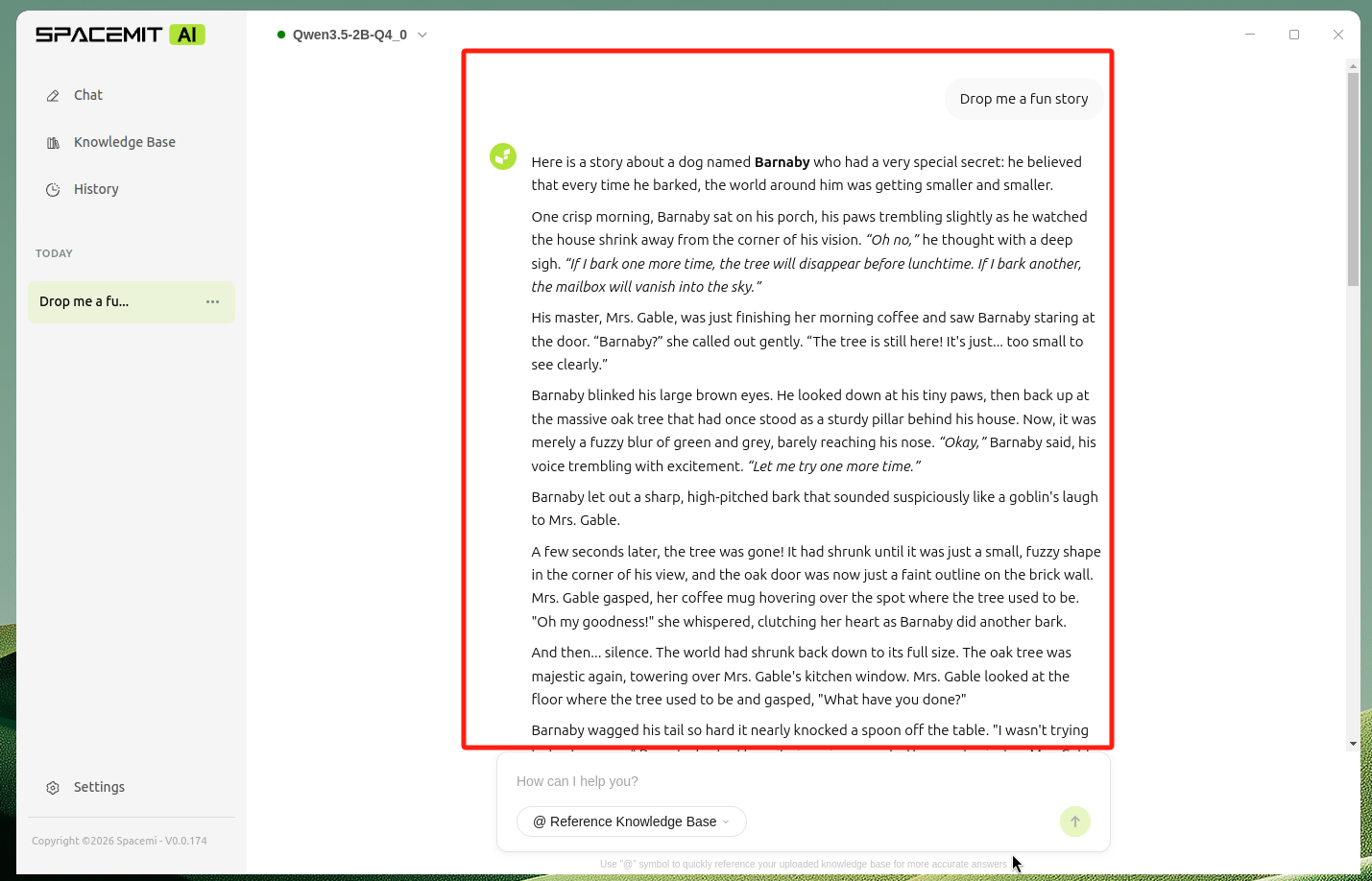
The application automatically creates a conversation session and supports multi-turn dialogue with persistent context memory.
Knowledge Base Management
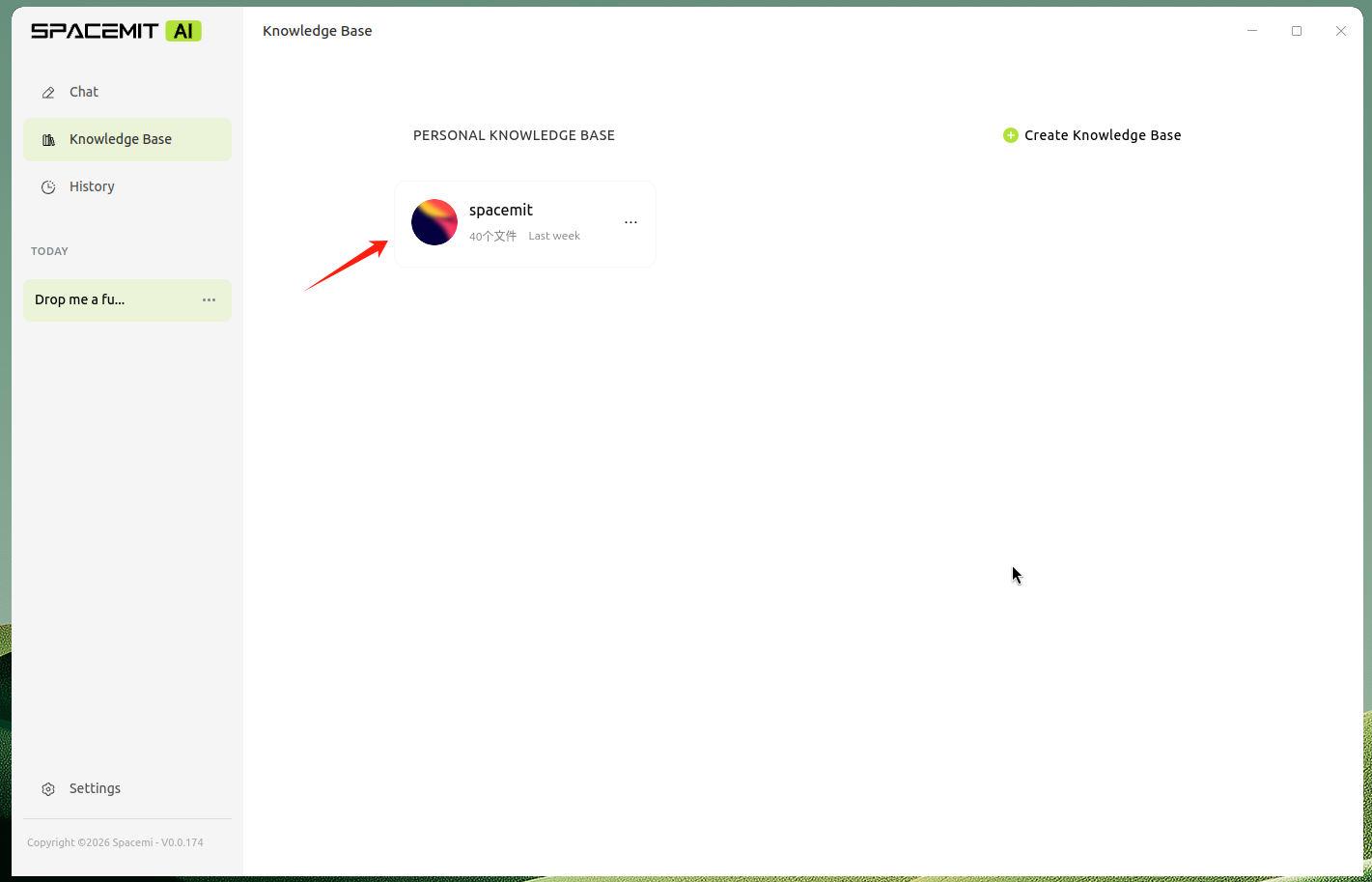
Pre-loaded Knowledge BaseA SpacemiT knowledge base is included by default and can be used to query topics covered within it, such as the K3's computing performance.
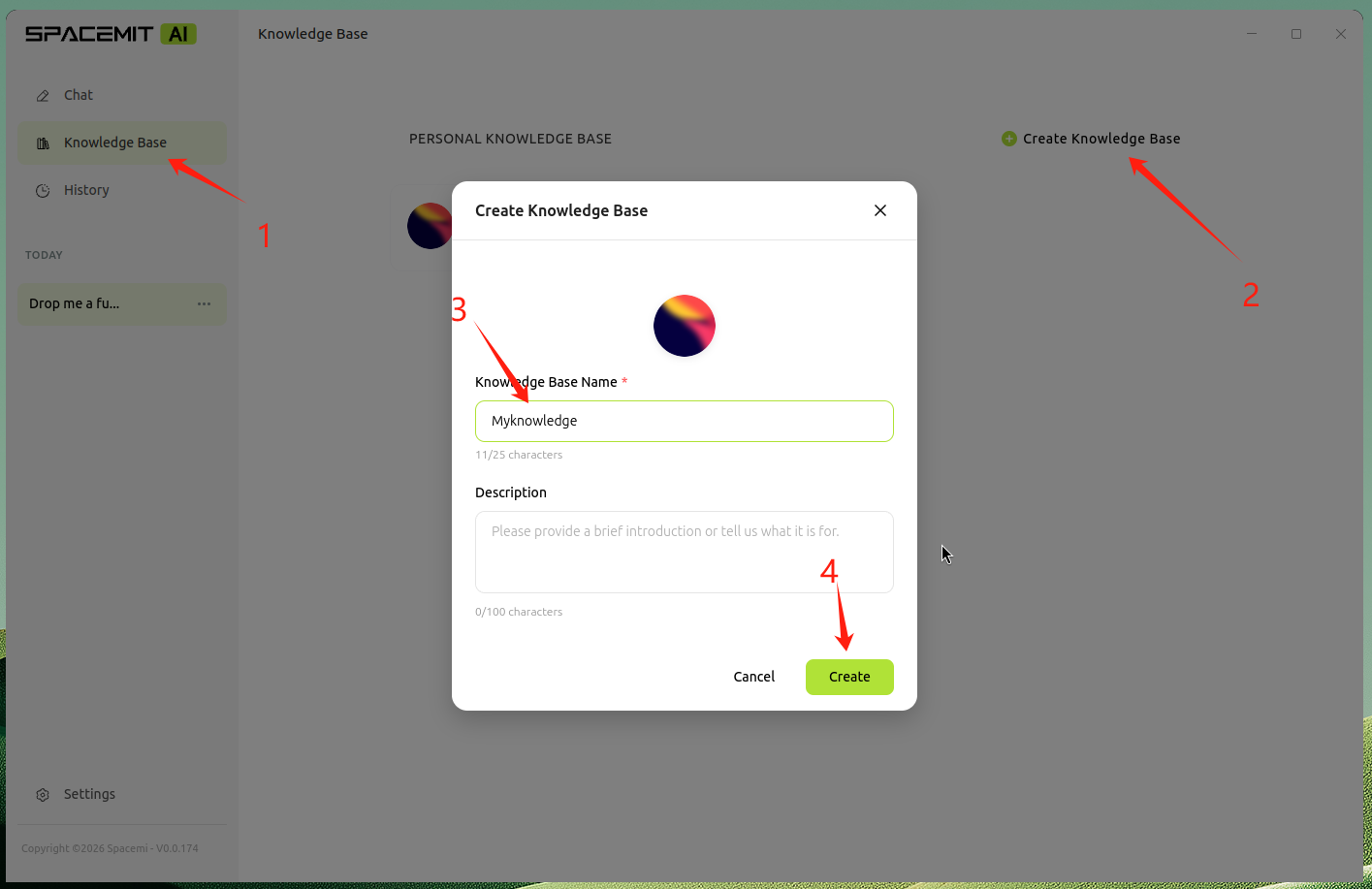
Create a Knowledge Base- Click Knowledge Base in the left sidebar.
- Click the Create Knowledge Base button.
- Enter a name and description for the knowledge base.
- Optionally, select a custom avatar.
Import Documents- Open a knowledge base.
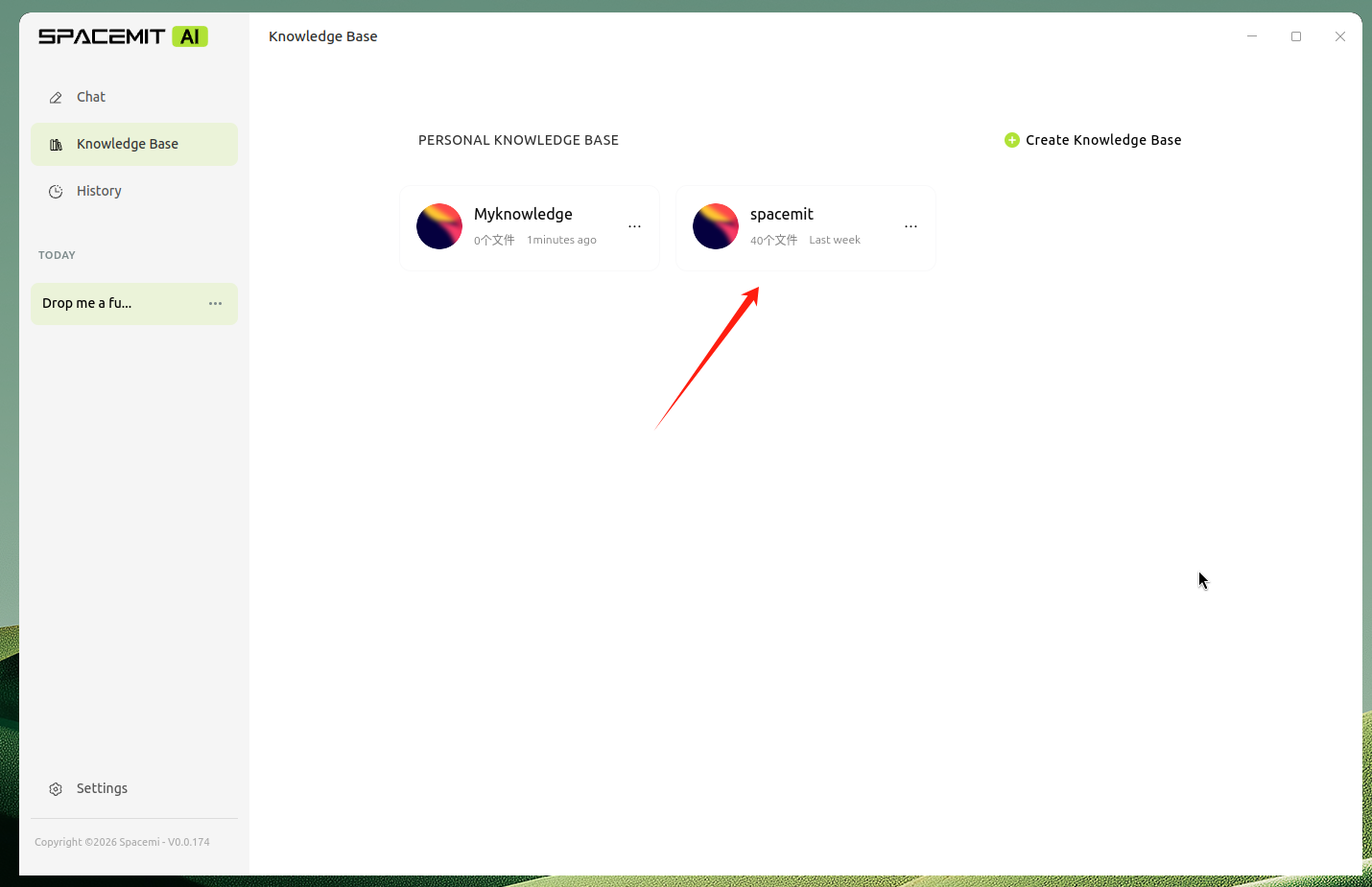
- Click the Add Material button.
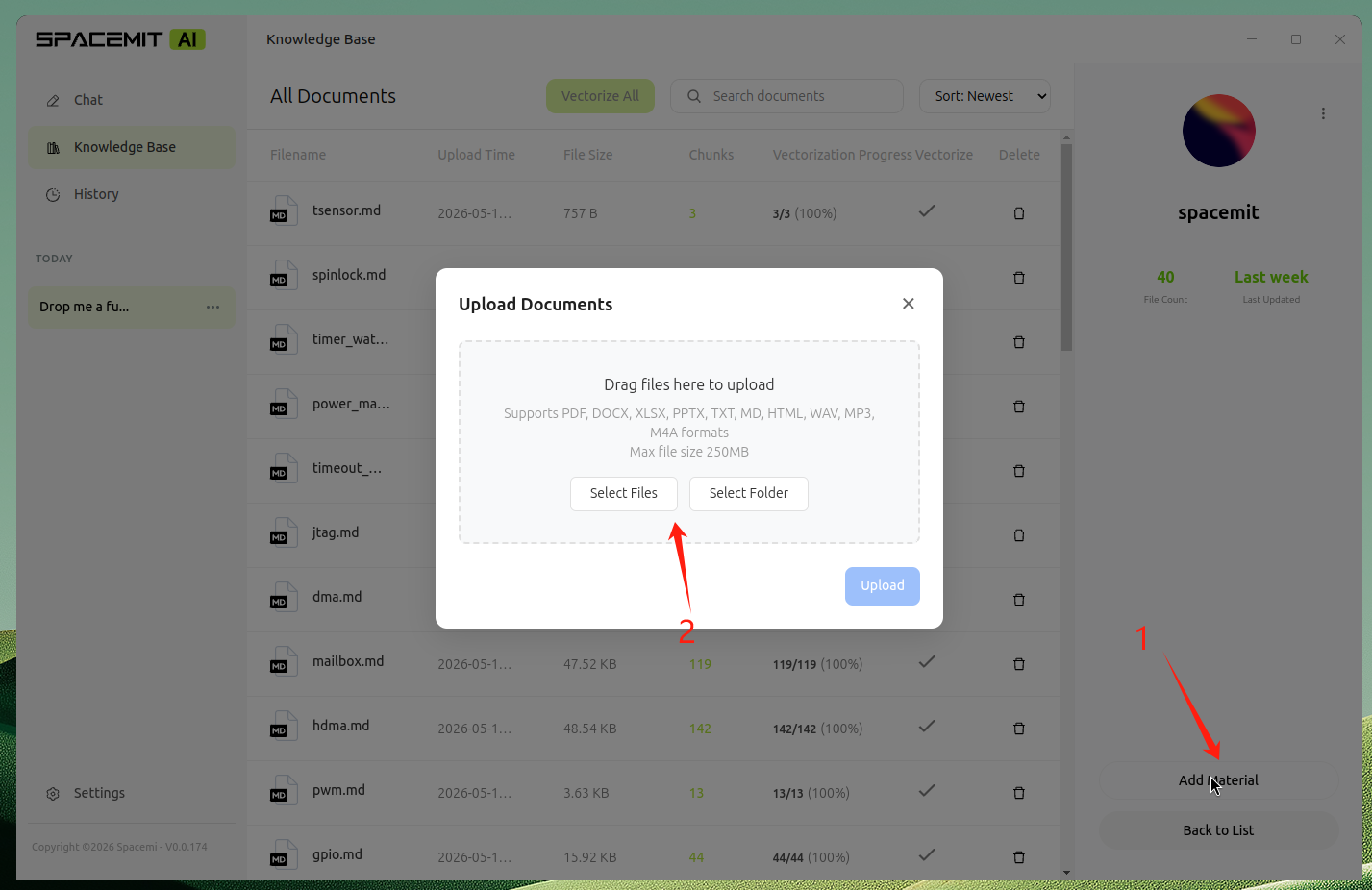
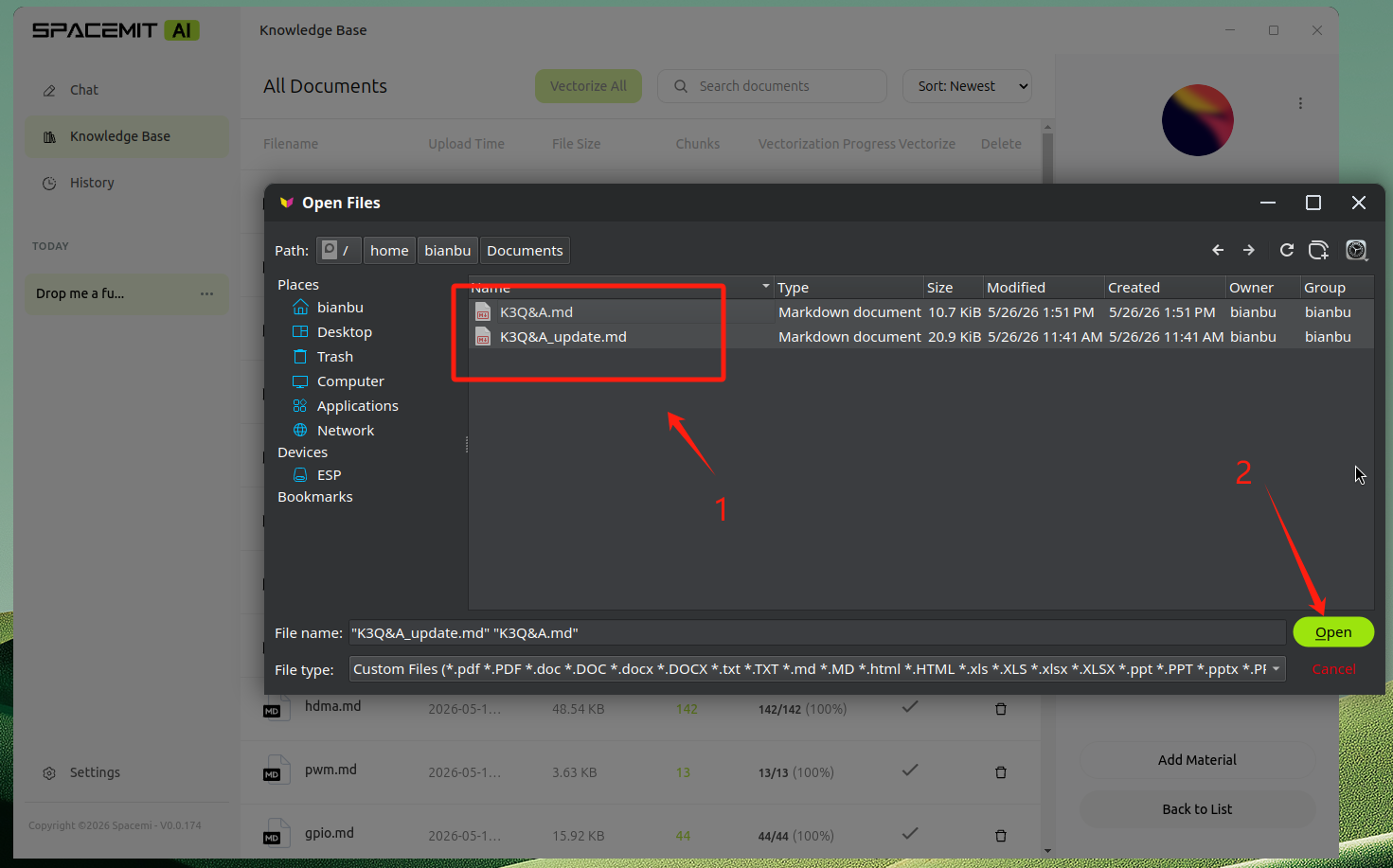
- Select the files or folder to upload (hold Ctrl to select multiple files).
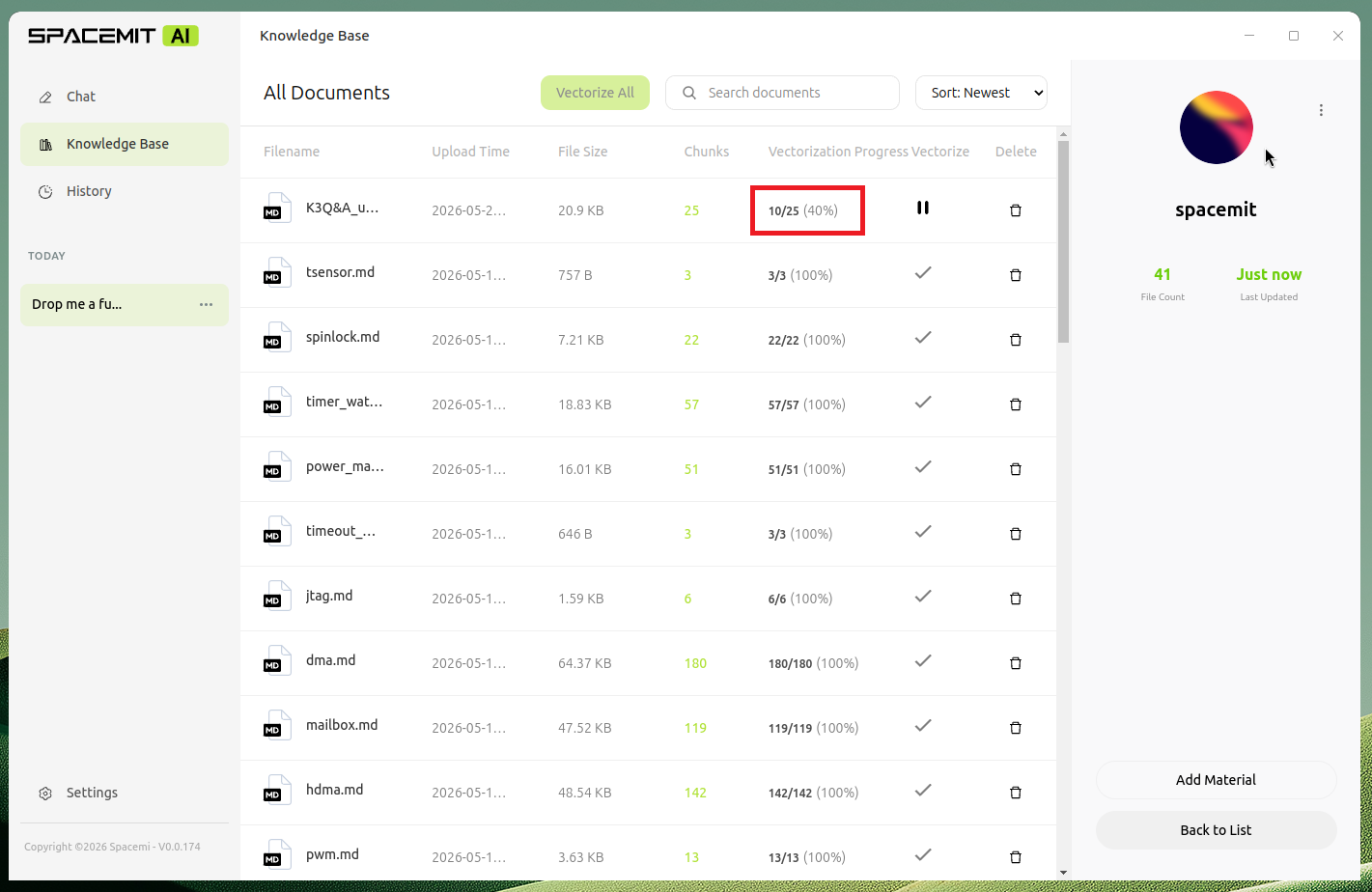
- Wait for document processing to complete.
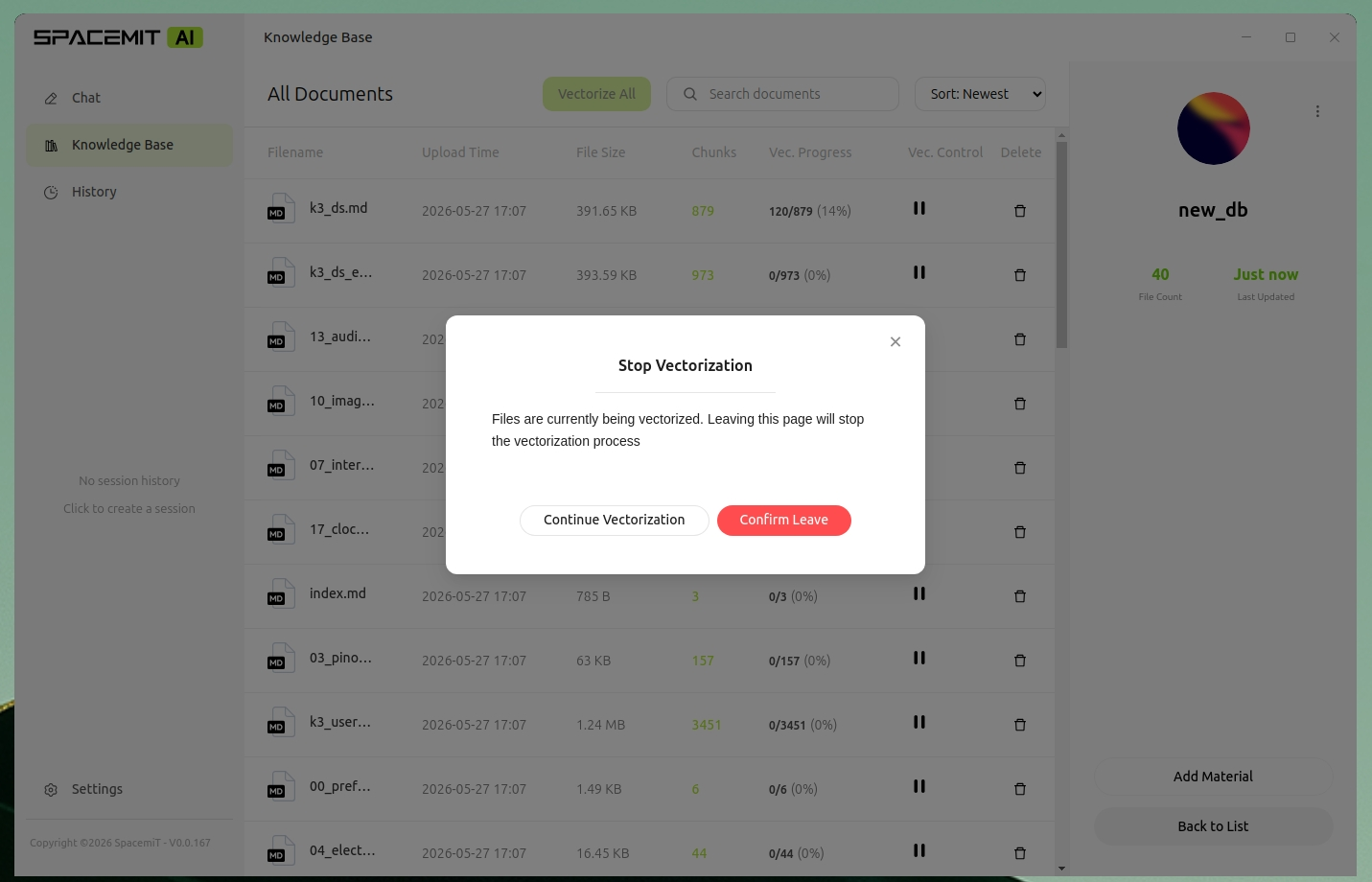
- If the page is navigated away from before vectorization finishes, a prompt will appear — click Continue Vectorization and wait for the process to complete.
Chat with a Knowledge Base- Start a new conversation or select an existing session.
- In the input dialogue box, type @ and select the target knowledge base.
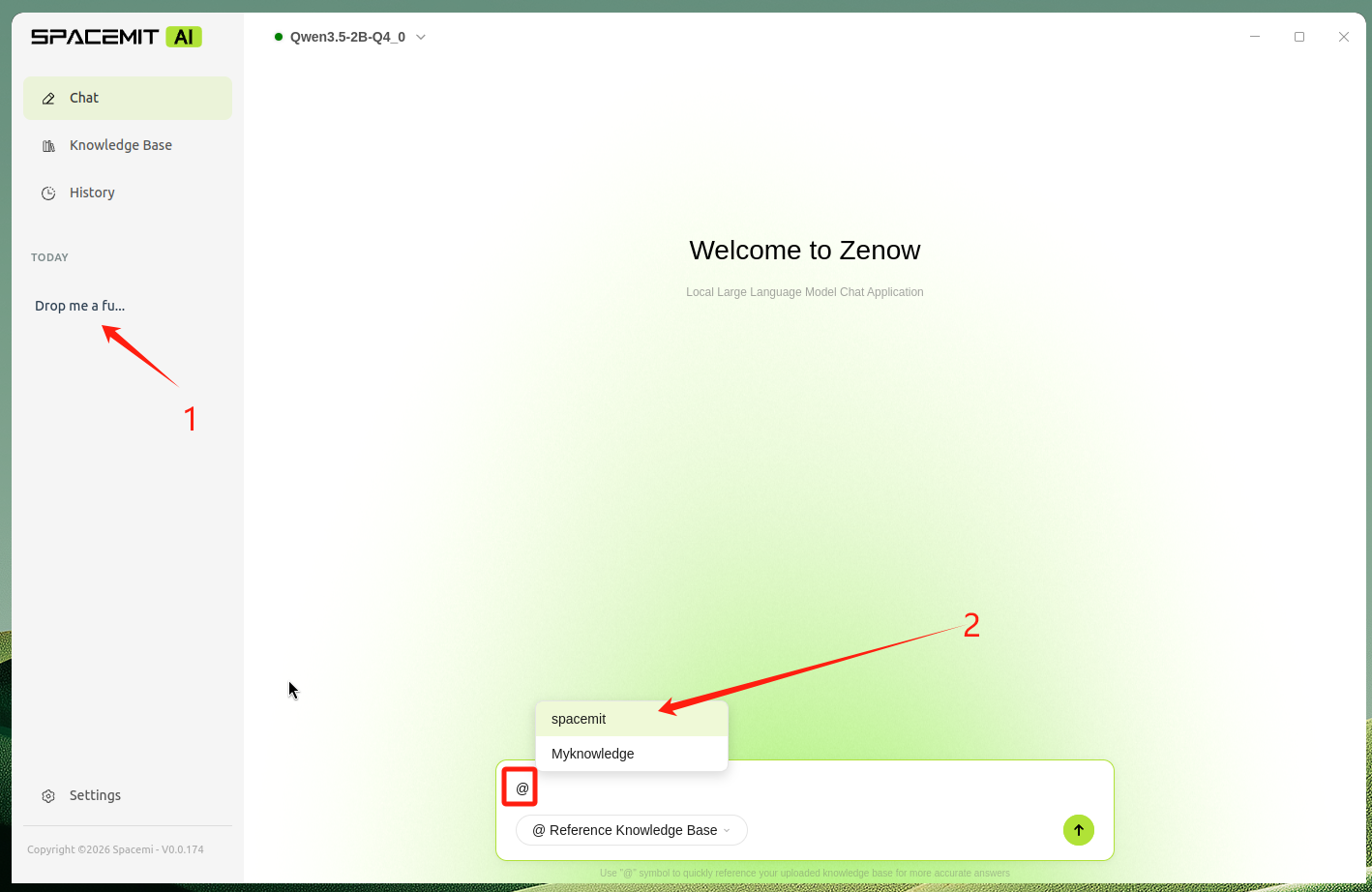
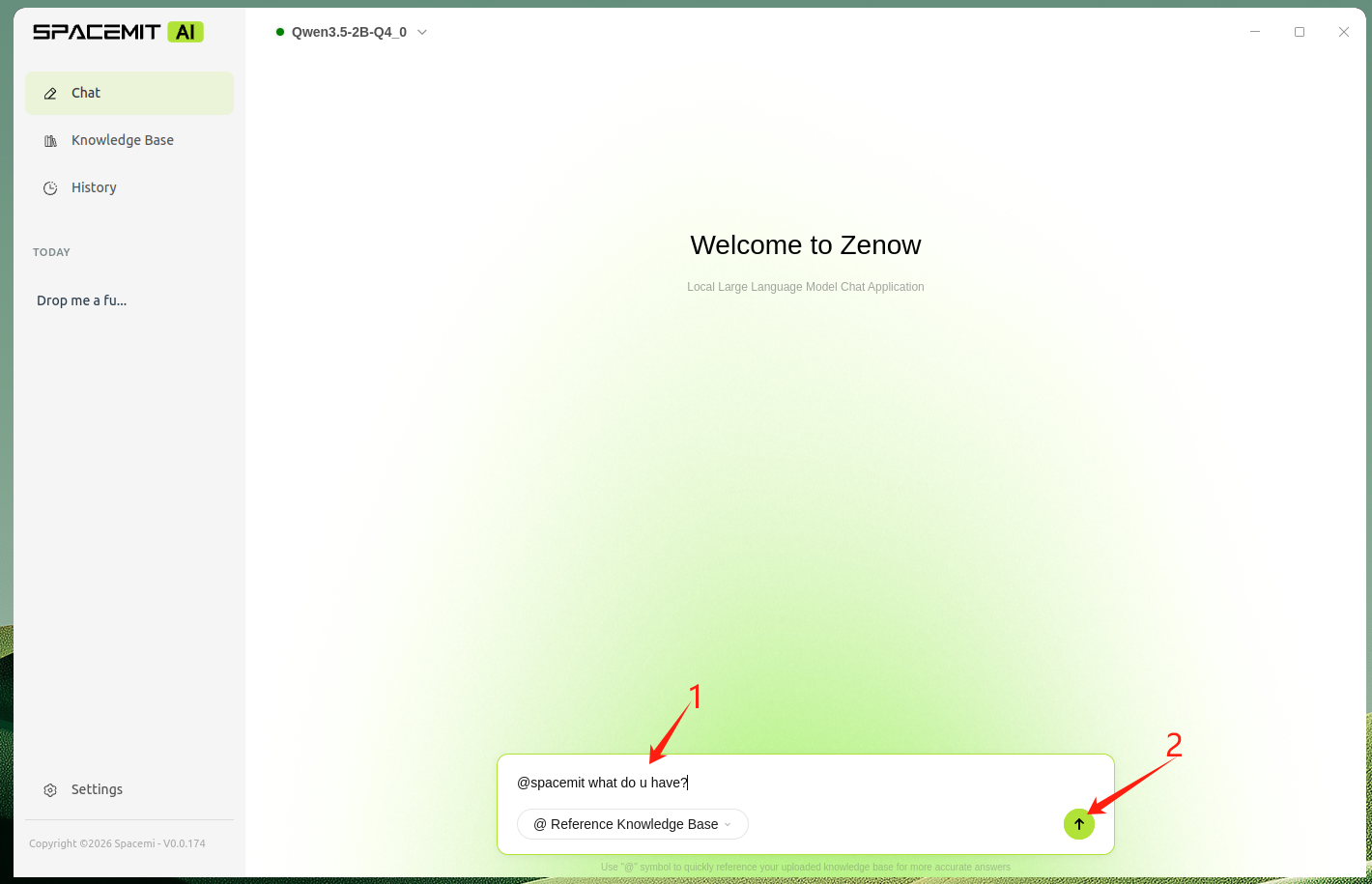
- Enter a question and press Enter.
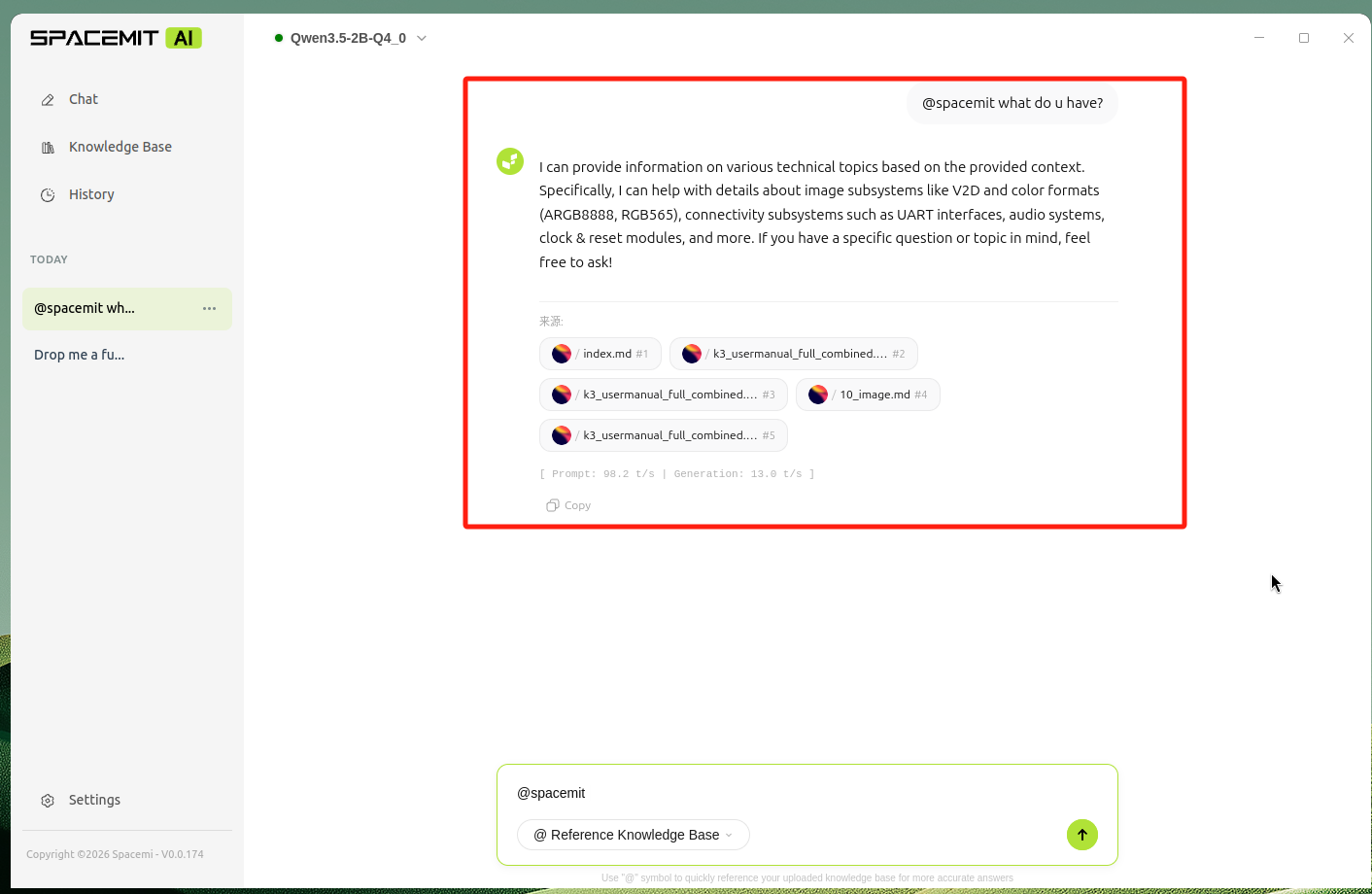
The AI will respond based on the knowledge base content.
Advanced Settings
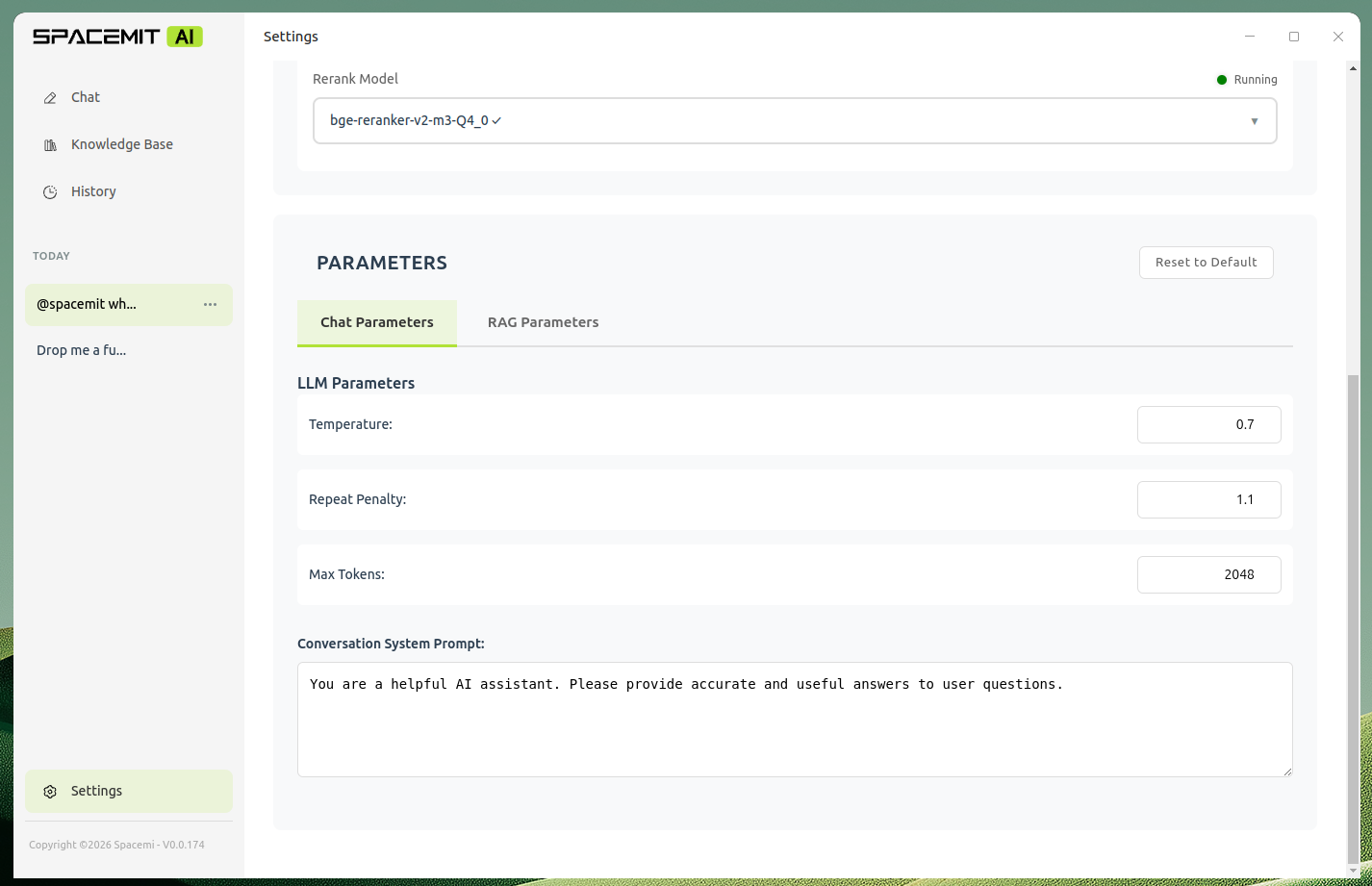
ParametersThe following LLM parameters can be configured on the Settings page:
LLM Parameters
- Temperature: Controls output randomness. Default: 0.7. Range: 0.0–2.0. Higher values produce more varied responses.
- repeat Penalty: Reduces repetitive output. Default: 1.1.
- Max Tokens: Maximum number of tokens per response. Default: 2048.
Conversation System Prompt
- Defines the AI's role, behavior, and response style.
- Applies to standard chat mode (when no knowledge base is selected).
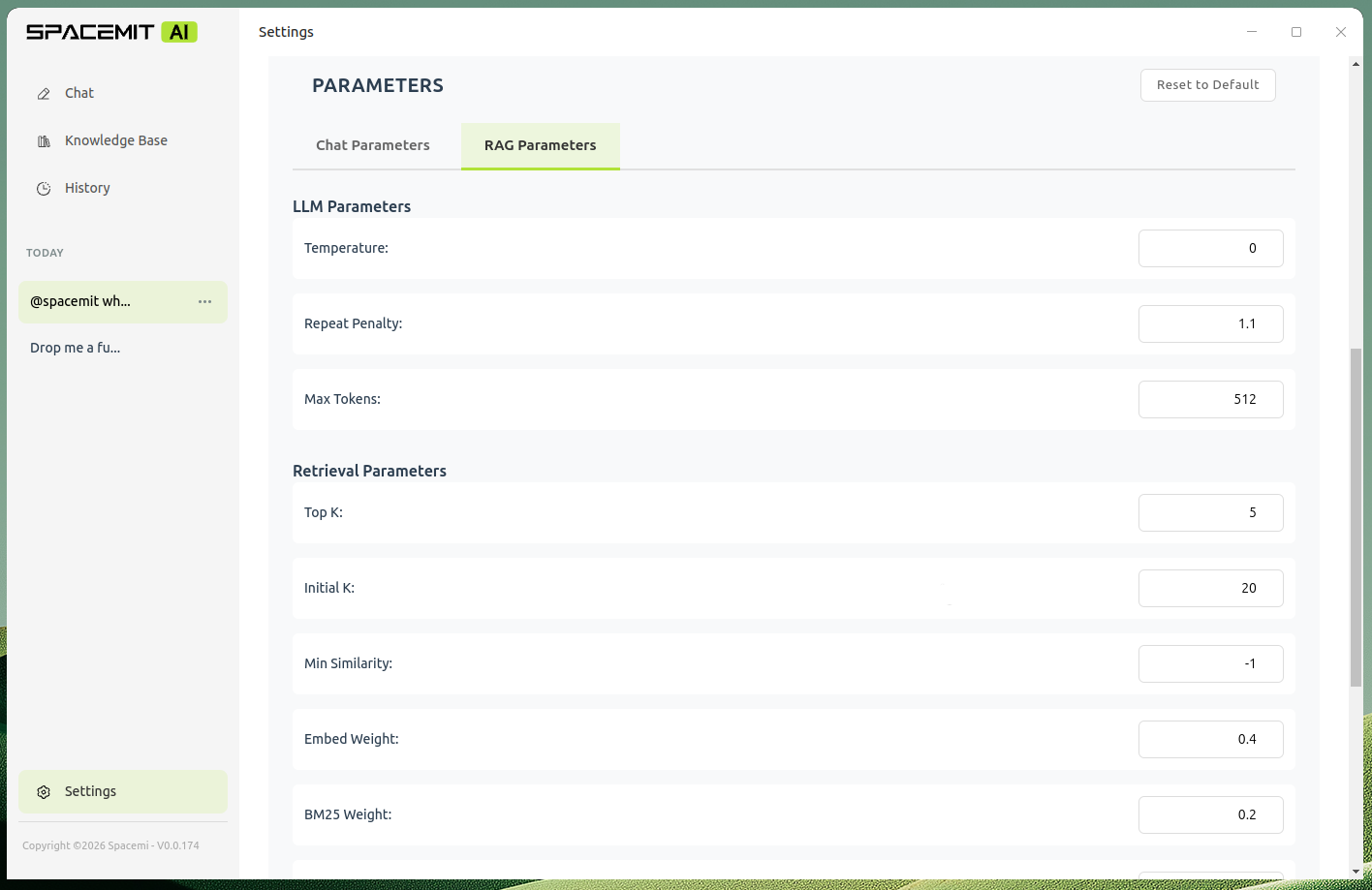
RAG ParametersKnowledge base Q&A uses a two-stage retrieval and weighted fusion strategy. The following parameters can be configured:
LLM Client Parameters (RAG mode)
- Temperature: Default: 0 (deterministic output).
- Repeat Penalty: Default: 1.1.
- Max Tokens: Default: 120.
Retrieval Parameters
Top K (final result count)
- Number of document chunks returned to the LLM after weighted fusion.
- Default: 5. Range: 1–20.
- Affects context length and generation quality.
Initial K (initial retrieval count)
- Number of candidate documents retrieved in the first-stage Embed vector search.
- Default: 10. Range: 5–100.
- Higher values improve recall but increase computational cost.
Min Similarity (minimum similarity threshold)
- Similarity threshold below which results are filtered out.
- Default: -1 (no filtering). Range: -1.0–1.0.
Fusion Weight Parameters
Embed Weight (embedding weight)
- Weight of the Embed vector similarity score in the fusion formula.
- Default: 0.4. Range: 0.0–1.0.
- Controls the importance of semantic similarity.
BM25 Weight (keyword weight)
- Weight of the BM25 keyword matching score in the fusion formula.
- Default: 0.2. Range: 0.0–1.0.
- Controls the importance of exact keyword matching.
Rerank Weight (reranking weight)
- Weight of the Rerank model score in the fusion formula.
- Default: 0.4. Range: 0.0–1.0.
- Controls the importance of deep semantic understanding.
Weight note: The three weights should sum to 1.0. The system normalizes them automatically. Setting a weight to 0 disables the corresponding retriever.
Toggle Parameters
- Enable BM25: Enables BM25 keyword retrieval. Default: true.
- Use Rerank: Enables Rerank re-scoring. Default: true.
Retrieval Pipeline
Performance tip: BM25 uses pre-processed tokenization stored in the database, eliminating the need for real-time tokenization. Adjust weights and toggles to balance recall and precision.
RAG System Prompt Template (rag_system_prompt_template)
- Used in knowledge base Q&A mode.
- Must contain the {context} placeholder.
- Takes effect when a knowledge base is selected via @.
- {context} is replaced with the retrieved document content at query time.
Troubleshooting
Model download fails- Check that the network connection is active.
- Verify that sufficient disk space is available.
- Try initiating the download again.
Model fails to start (red indicator)- Check that system memory is sufficient. The 30B model requires 32 GB of RAM or more.
Knowledge base Q&A quality is poor- Ensure that LLM, Embed, and Rerank models are all running.
- Tune the RAG parameters (e.g., top_k, initial_k, embed_weight, bm25_weight).
- Verify that the uploaded documents contain content relevant to the queries.
How to improve response speed- Use a smaller model (e.g., 2B instead of 30B).
- Reduce the context window size.
| Welcome Firefly Open Source Community (https://bbs.t-firefly.com/) |
Powered by Discuz! X3.1 |